Showing posts with label Continuous Integration. Show all posts
Showing posts with label Continuous Integration. Show all posts
-
TrueUpdate
TrueUpdate is a Dynamic Software Update System for integrating automated updating capabilities into software products. TrueUpdate provides a framework for determining required updates and retrieving and applying the necessary patch or installation files via Internet, intranet or LAN.
TrueUpdate is not a freeware or open source like other tools. A 30-day trial version can be downloaded from the link given below.
Setting up TrueUpdate
i Download latest version of TrueUpdate from http://www.indigorose.com/tu/index.php
ii Run the downloaded executable and install it to C:\citools\TrueUpdate.
How does TrueUpdate work?
TrueUpdate consists of two separate components:
- A client-side executable that runs on the user's system and
- A server-side data file located somewhere else (typically on a web site or FTP server on the Internet).
The TrueUpdate client contains a list of locations where the server file can be found. At run time, the client executable downloads the server file from one of these locations, and then uses the information in the server file to guide the rest of the update process.
The server file contains version identifiers and actions. The version identifiers enable the client to distinguish one version of software from another. They consist of criteria such as the value of a specific registry key or INI file entry, the version from a file's resource information, or the CRC value of a specific file. For instance, if the installer writes the software's version number to the registry, a version identifier could be used to compare the value at that registry key with a specific version number. If the values matched, that version would be identified. Once a version has been identified, the TrueUpdate client performs a series of actions associated with that version. For instance, if an update is available, the actions might instruct the client to download and then execute a patch file.
Source of Information : Enterprise Solution Providers, Inc. 2005 – v1.0
more
-
Draco.NET Web Viewer
Draco.NET Web Viewer is a web based log viewer for Draco.NET. The name of the build module can be specified (via Web.Config) along with the paths to the XML build logs that are created by Draco.NET. Once configured, Draco.NET Web Viewer will display one or more solutions and detailed result of each build.
Setting up Draco.NET Web Viewer
i Download latest version of Draco.NET Web Viewer from http://www.biasecurities.com/SoftwareBuilds/DracoWebViewer
ii Unzip the downloaded file to C:\citools\Draco.NET Service\DracoWebViewer. Convert DracoWebViewer folder to a web folder.
Source of Information : Enterprise Solution Providers, Inc. 2005 – v1.0
more
-
Draco.NET
NAnt is used to build the .NET Solutions manually. Draco.NET is used to automate the build process.
Draco.NET is a Windows service application designed to facilitate continuous integration. Draco.NET monitors the source code repository and automatically rebuilds a project (by using compiling tools like NAnt or Visual Studio.NET) when changes are detected and then emails the build result along with a list of changes since the last build. Draco.NET uses a .NET XML configuration file to determine which VSS databases to poll and how often to poll them.
Setting up Draco.NET
i Download latest version of Draco.NET (Draco-Server-x.x.x.msi) from http://sourceforge.net/projects/draconet
ii Install Draco.NET to C:\citools\Draco.NET Service
Another option to automate the build process instead of Draco.NET is of using CruiseControl.NET
– http://cruisecontrol.sourceforge.net
Source of Information : Enterprise Solution Providers, Inc. 2005 – v1.0
more
-
NUnit
NUnit is a unit-testing framework for all .NET languages.
Setting up NUnit
i Download the latest version of NUnit from http://sourceforge.net/projects/nunit
ii Install NUnit to D:\citools\nunit.
To get started with NUnit refer to QuickStart.doc that comes along with the NUnit installation package.
Using NUnit through NAnt to perform unit testing is explained in Section ‘5.5 Creating NAnt Build scripts for the Sample Applications’.
Why is unit testing important?
When an engineer builds a car he first tests that every separate piece works together before putting all the parts together to build a car. If pieces do not work separately, then there is no chance of them working when they are together.
Unit testing is the process of testing each significant object and its method separately to simplify overall integration testing later on and to minimize the number of bugs. Any development process that implements rigorous unit testing standards leads to higher quality code and less bugs during integration.
Source of Information : Enterprise Solution Providers, Inc. 2005 – v1.0
more
-
FxCop
FxCop is a code analysis tool that checks .NET managed code assemblies for conformance to the Microsoft .NET Framework Design Guidelines. It uses reflection, MSIL parsing, and call-graph analysis to inspect assemblies for more than 200 defects in the following areas: Library design, Localization, Naming conventions, Performance, and Security.
Setting up FxCop
i Download the latest version of FxCop from http://www.gotdotnet.com/team/fxcop
ii Install FxCop to D:\citools\fxcop.
To get started with FxCop refer to online documentation at http://www.gotdotnet.com/team/fxcop/gotdotnetstyle.aspx?url=DocFrameset.htm or FxCop.chm that comes along with the installation package.
Source of Information : Enterprise Solution Providers, Inc. 2005 – v1.0
more
-
NDoc
NDoc generates class library documentation from .NET assemblies and the XML documentation files generated by the C# compiler (or with an add-on tool for VB.NET).
NDoc can be directly used by NAnt script to generate class library documentation through a task called.
To make class library documentation NDoc requires XML documentation files generated by Visual Studio.NET when the application is compiled. This is for C# only (the C# Project needs to be configured to generate XML documentation file in VS.NET). The reference of XML documentation file is present in the .csproj file, which is required bytask to generate this XML on each compilation.
Setting up NDoc
i Download the latest version of NDoc from http://ndoc.sourceforge.net
ii Install NDoc to D:\citools\ndoc.
It is preferable to get familiar with NDoc before using NAnt’stask to create the documentation. To get started with NDoc refer to http://ndoc.sourceforge.net/usersguide.html.
Source of Information : Enterprise Solution Providers, Inc. 2005 – v1.0
more
-
NAnt & NAntContrib
NAnt is an open source .NET build tool used to compile .NET applications. The compilation is performed by running NAnt manually and passing the path to NAnt build scripts. The build script is an XML file that consists of different tasks that NAnt will perform, such as fetching latest source code from the source control, creating and/or deleting certain directories and/or files on the file system, building solutions, etc.
NAntContrib provides extra tasks and tools that are not present in NAnt.
Setting up NAnt along with NAntContrib
Follow these steps to set up NAnt along with NAntContrib
i Download latest version of NAnt from http://nant.sourceforge.net
At the time of writing this document the latest version is 0.85 - nightly build. Version 0.84 has a bug that does not allow compilation of Web Applications. Make sure to download Version 0.85.
ii Unzip NAnt to D:\citools\nant folder. Add the \nant\bin to systems Path environment variable.
iii Download latest version of NAntContrib from
http://nantcontrib.sourceforge.net
iv Unzip NAntContrib to D:\citools\nantcontrib folder.
v Copy all the files from \nantcontrib\bin into \nant\bin
How does NAnt work?
NAnt is driven by an XML file that contains instructions about which projects to build and the tasks to be executed. The task (a tag in the NAnt build script) is where NAnt runs code and calls executables. Tasks can have multiple attributes or arguments. NAnt expects these XML build file to be named filename.build.
For more information about NAnt refer to http://nant.sourceforge.net/wiki
The basic function of NAnt is to build or compile .NET source code. The path to the .NET Solution file (.sln) is specified in one of the tasks of the NAnt script along with the path to the output directory where NAnt stores the result of compilation.
Along with compiling the source code NAnt also performs many other tasks as well, for instance to fetch source code from VSS and perform compilation on that source code. This task is in the build scripts along with several other tasks.
Source of Information : Enterprise Solution Providers, Inc. 2005 – v1.0
more
-
Building the CI Environment
General Requirements
At least one server is needed to start building the CI environment.
Prior to configuring these tools this guide will step through creating sample .NET applications to help demonstrate how these tools work and interact with each other. The guide uses two sample .NET applications, one Windows Application and one web (ASP.NET) application. The reason for using these two types of applications is to demonstrate the difference between the way the tools are configured for web and non-Web Applications.
Once these applications are created and added to source control (VSS) the C.I tools will be configured and scripts created for some tools. Each script that is created is discussed in detail.
Server Requirements for the .NET Environment
NET Framework 1.1 (optional with Visual Studio.NET 2003)
Visual Studio.NET is not a necessity for server machine, but it is installed since the guide uses Visual Studio.NET to create sample .NET applications. These sample .NET applications can be created on some other machine with Visual Studio.NET installed and then copied on to the server. Installation of .NET Framework 1.1 is essential.
Microsoft Visual SourceSafe 6.0
Other source control environments could be used as well, such as Subversion or CVS. However, make sure the selected software is compatible with other CI Tools used in this guide. The following scripts used for each tool assume the use of VSS.
Source of Information : Enterprise Solution Providers, Inc. 2005 – v1.0
more
-
ESP’s Continuous Integration Environment
At a high level the development architecture used at ESP is very similar to Microsoft with a few minor process improvements.
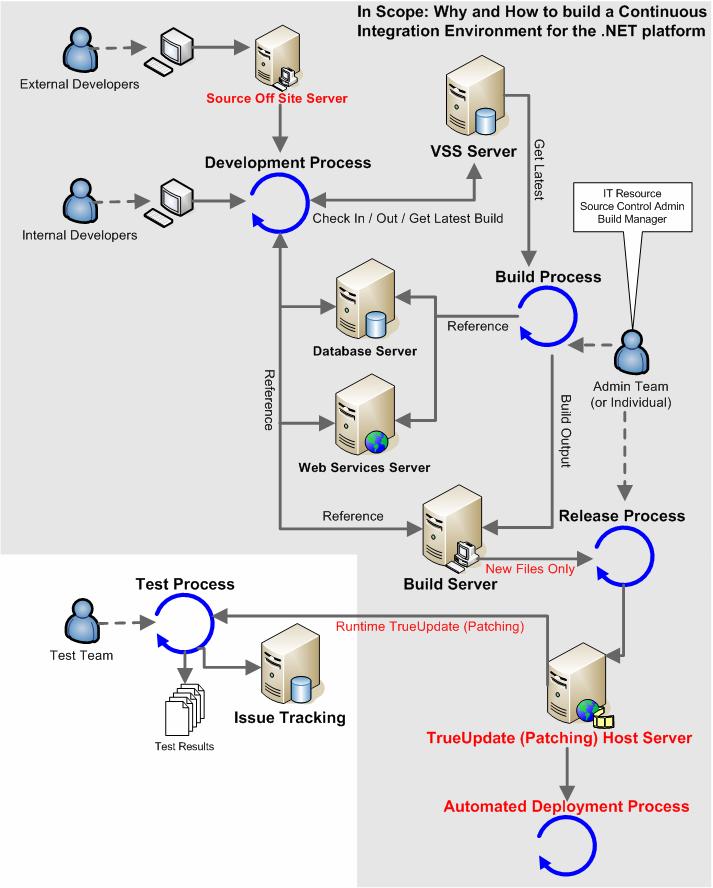
The image below shows the overview of ESP’s Continuous Integration Environment.
• The grey area identifies what is to be covered “In Scope” in the rest of the documentation.
• The red text identifies differences between ESP’s CI model and the Microsoft Team Development Environment model. ESP’s Continuous Integration Environment
Source Off Site Server
This server interacts directly with the VSS server to access source files as part of the development process. Source Off Site allows those without access to the intranet a way to access source files and still maintain internal network infrastructure. This works well when two companies with differing infrastructures work together on a single project. In this case, all that is needed is web access. There are many other open source products or workarounds that can be used to perform this same function.
TrueUpdate (Patching) Host Server
The TrueUpdate Host Server is the Build Managers tool to distribute builds quickly and efficiently to individuals involved in a project. This server hosts a file that matches the client build versus the server build. If the server has a more recent version, the client connects and downloads the most recent version for use locally.
This architecture supports builds for Test, QA, and Production (End User) to be pushed out automatically after testing is approved. All distribution at this point is handled by the Build Manager(s). For more information about the Release Process (Build Promotion) please refer to Section 6.0 Build Promotion Process.
Source of Information : Enterprise Solution Providers, Inc. 2005 – v1.0
more
-
Microsoft Team Development Environment
Microsoft’s website provides “guidance and recommendations to enable you to set up a team development environment and work successfully within it” found at this link:
http://msdn.microsoft.com/library/en-us/dnbda/html/tdlg_rm.asp
The following diagram outlines what the Microsoft article discusses as “In Scope” for their “Team Development Environment” setup. Microsoft Team Development Environment
The VSS Server
This is a central server that hosts one or more Microsoft Visual SourceSafe (VSS) databases used to provide versioned controlled access to project source files. Developers interact with it on a daily basis to check project files in and out through the Microsoft Visual Studio.NET Integrated Development Environment (IDE). It is also accessed by the build script to obtain the latest source code required for the current system build.
The Build Server
The Build Server is an automated build script server used to compile and build entire projects. The build scripts are critical elements for all software development projects. These allow generation of successive versions of the system in an automated and consistent, repeatable fashion. The output assemblies generated by the build process are maintained in folders on this server.
Database Server
This server hosts instances of Microsoft SQL Server and provides a central location where developers can connect to databases whose schemas match the current system database design. In some scenarios, local SQL Server databases are needed on development workstations to perform isolated unit testing. For example, local servers allow the developer to manipulate a set of test data, remaining isolated and guarantee zero impact on other team members.
Web Services Server
The primary function of the Web Services Server in the team development environment is to host Extensible Markup Language (XML) Web Services that are currently under development. The central Web Server allows the services to be published for other developers or development teams such as testing, QA or the end user to reference these projects outside of a developer’s local machine.
Source of Information : Enterprise Solution Providers, Inc. 2005 – v1.0
more

-
Definitions of Continuous Integration components.
The bottom of certain sections contains a line to additional information on the particular CI component. ESP believes it is important to be familiar with some of the terminology before spending a good amount of time reading about it.
Continuous Integration (CI)
Continuous Integration (CI) is the strategy of making sure that changes to the project’s code base are built, tested, reported on, and rapidly made available to all parties after they are introduced. This framework frees up developers from having to constantly create new builds for the Test and QA groups. Each subsequent build is established and promoted, then downloaded automatically for testing.
Ref: http://www.theserverside.net/articles/showarticle.tss?id=ContinuousIntegration
Visual Source Safe (VSS)
Microsoft’s Visual Source Safe (VSS) helps to manage projects regardless of the file type - (e.g. text files, graphics files, binary files, sound files, or video files) by saving them to a database. When a file is added to VSS, the file is backed up on the database, made available to other people, and changes that have been made to the file are saved so old versions can be recovered an at any time. Members of the team can see the latest version of any file, make changes, and save a new version in the database.
Source Off Site (SOS)
Source Off Site (SOS) provides a collaboration environment for users of Microsoft Visual SourceSafe 6.0 (VSS). SOS Collab combines source code control and bug tracking tool together with collaboration tools such as chat, discussion groups, and notifications.
The SOS Collab Servers directory does not contain any project data. All information is stored in the SQL database, located in the SQL installation folder.
SOS servers need to have VSS database on same machine or same LAN as the SOS Collab Server and VSS 6.0 APIs (installed with VSS 6.0 Client) on the same machine.
Successful Build
An aggressive goal for a successful build would include:
- All the latest sources are checked out of the configuration management system.
- Every file is compiled from scratch.
- The resulting object files are linked and deployed for execution.
- The system is started and a suite of tests is run against the system.
- If all of the above execute without error or human intervention and every test passes, that is a successful build.
Ref: http://www.martinfowler.com/articles/continuousIntegration.html
Build Promotion
Promoting a build means copying it to the target server. The build must not be rebuilt but rather moved. Therefore there is the need to identify and archive builds in a build promotion process (Section 6.0 Build Promotion Process) as builds are created.
Ref: http://www.15seconds.com/issue/040810.htm
Web Development Models (under VSS)
This defines Microsoft’s suggested approach Web Application development in a team environment. It is strongly advised to adopt the “Isolated” development model shown in Figure 1 for team developments because it offers a number of significant advantages, for instance, each individual can continue working on a Web Application without the worry of another developer making a change conflicting with their own.
With the Isolated model, development (edit, debug and run) is in complete isolation on the developer’s workstation using a local Web server (http://localhost). Access to the master source files is controlled via a Microsoft Visual SourceSafe (VSS) database located on a network file share.
Ref: http://msdn.microsoft.com/library/default.asp?url=/library/en-us/dnbda/html/tdlg_ch2.asp
NAnt
NAnt is an open source .NET build tool used to compile .NET applications.
NAntContrib
NAntContrib is the Project application for tasks and tools for NAnt. It provides extra tasks and tools that are not present in NAnt.
Draco.NET
Draco.NET is a Windows Service Application designed to facilitate Continuous Integration. Draco.NET monitors the source code repository, automatically rebuilds a project when changes are detected and then emails the build result along with a list of changes since the last build.
Draco.NET version 1.5 supports builds using NAnt build tool or via Visual Studio .NET 2002/2003 solution files.
NDoc
NDoc generates class library documentation from .NET assemblies and the XML doc files generated by the C# compiler (or with an add-on tool for VB.NET). It is used by NAnt build tool to automatically generate library documentation.
NUnit
A Unit-testing framework for all .NET languages. NUnit is built within NAnt and exposed as a NAnt task.
NUnitForms
NUnitForms is a tool extended from NUnit for automatically testing Windows Forms applications written on .NET.
FxCop
FxCop is a code analysis tool that checks .NET managed code assemblies for conformance to the Microsoft .NET Framework Design Guidelines. It uses reflection, MSIL parsing, and calls graph analysis to inspect assemblies for more than 200 defects in the following areas: Library design, Localization, Naming conventions, Performance, and Security.
FxCop includes both GUI and command line versions of the tool, as well as a SDK to create custom rules.
CruiseControl.NET
CruiseControl.NET is similar to Draco.NET that can monitor the source code repository and automatically rebuilds a project when changes are detected. It has several extra features when compared to Draco.NET.
Ref: http://confluence.public.thoughtworks.org/display/CCNET/What+is+CruiseControl.NET
Source of Information : Enterprise Solution Providers, Inc. 2005 – v1.0
more
-
Continuous Integration Best Practices
Understanding
That Continuous Integration itself is a software development Best Practice – central source file location, fully automated build, test and partly-automated distribution process that allows teams to build and test their software many times a day.
Buy In
This process starts with buy in for CI with Executives, which leads to Development Manager’s understanding; the end result being CI execution from Developers.
Continued Learning
Development Managers and Developers commit to learning and following the CI practices that best fit their environment.
Back Up
Environment and Source File back-up and recovery procedures are properly followed.
Quick Deployment
One of the main goals with CI is the speedy development from concept to user; ensure that frequent builds are consistently helping this process from start to finish.
No Broken Builds
The developer’s top priority is fixing breaks as new builds are created. Since CI involves a high amount of accountability, broken builds potentially affect every team member as well as the entire process. Team members must be able to rapidly trouble shoot and roll back changes to a successful build if needed.
Tight Build Promotion Process
Build promotion is how changes are taken from concept to development to the end user. The more consistent this process is, the more quickly ideas become a reality.
more
-
What is Continuous Integration (CI)
Continuous Integration (CI) is the strategy and practice of making sure that changes to a software project’s code base are successfully built, tested, reported on, and rapidly made available to all parties after they are introduced.
This section is simply a brief and high level explanation of Continuous Integration. Please refer to Section 8.0 References and Suggested Readings for more information. There are several basic requisites in setting up CI environment:
- Source code should be maintained in a central location, preferably a source code control product like Visual SourceSafe or CVS.
- Each project has build scripts to create a build.
- All code bases include an auto update framework.
In a Continuous Integration Environment source code is maintained in a central location where an application monitors the repository and springs into action when it notices changes (commits) to the code.
The objective involves using a full version of a given projects code base whenever any part of it changes, automatically run a build file (or manually), run automated tests, report on the results for quick problem resolution, and quickly make all changes available to teams involved.
Advantages of Continuous Integration
- Dramatically increase ROI through full cycle efficiencies.
- Guarantees successfully compiled software.
- Visible progress reporting and problem tracking.
- Low TCO (Total Cost of Ownership).
- Relatively easy to build or integrate into an existing development environment.
- High impact environment upgrade with low maintenance.
- Improve development standards, consistencies and accountability.
- Increase amount of quality code.
- Rapidly identify bugs, who created them, and where it is.
- Quickly push high quality change updates to testing.
- Reduce development integration effort.
Disadvantages of Continuous Integration
- Migration of large volumes of internal development projects into a CI environment that are spread across various development environments require tight planning and coordination to successfully migrate.
- Requires understanding of CI and discretion when setting up projects.
more
Subscribe to:
Posts (Atom)
